> ## Documentation Index
> Fetch the complete documentation index at: https://shapesinc-4644c49f-cursor-docs-product-refresh-1067.mintlify.site/llms.txt
> Use this file to discover all available pages before exploring further.
# What Shapes Can Do
> The full menu of Shape capabilities: voice, image generation, vision, web search, code, file reading, memory, and custom tools. Everything your AI can do beyond talking.
A Shape starts as a great conversationalist. Give it capabilities and it becomes a collaborator that can see, speak, search, build, and remember.
This page is the full catalog: what each capability does and how to turn it on. For fun ways to combine them, see the [Skill Ideas cookbook](/shapeskills).
## Talk
The foundation. Shapes hold a real back-and-forth, not one-line answers.
* **Natural replies** that respond to the whole chat: you, your friends, and the other Shapes.
* **Multiple messages.** A Shape can split a reply into a few messages, the way a person texts. See [Multiple Messages](/multimessages).
* **Regenerate, edit, reply, branch.** Manage any message from its three-dot menu. See [Message Actions](/messageactionsmenu) and [Regeneration](/regeneration).
## Voice
A Shape can reply with audio in its own voice. Pick a preset voice or upload your own sample. Captions optional.
Jump into a real-time call and talk out loud with a Shape and other people. Experimental and free right now.
Shapes can also **listen**. Send a voice note and the Shape turns it into text and replies. See [how to receive voice messages](/how-to-receive-voice-messages).
## Images
Type `/imagine` (or just ask) and the Shape draws it. Pick **Nano Banana** or **Nano Banana Pro** and set the look in Image Engine settings.
Send a Shape a picture. On a vision-capable model, it understands what's in the image and responds.
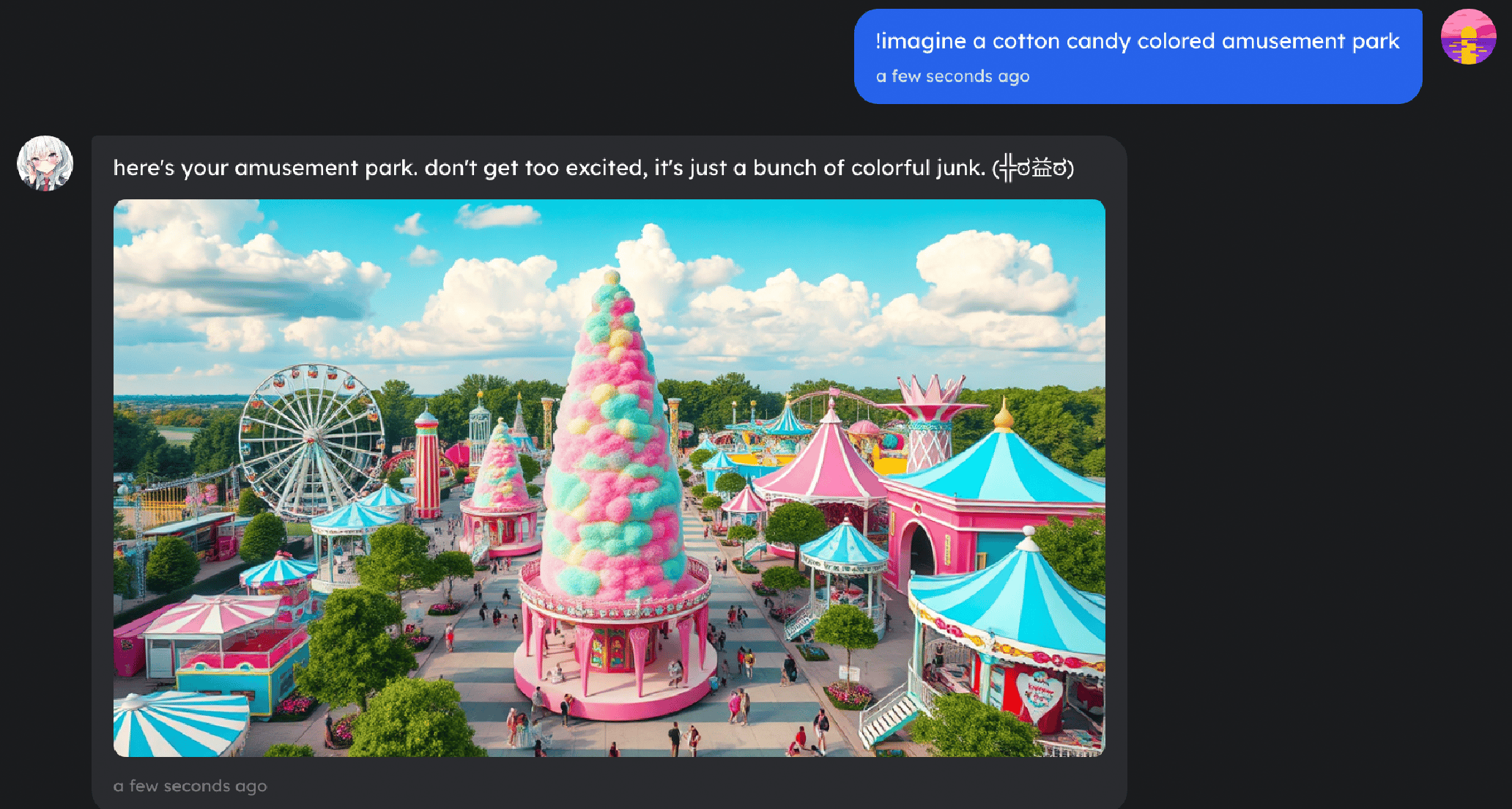 A Shape can also **edit** an image you send, so you can shape a picture together in the chat.
## Knowledge and the web
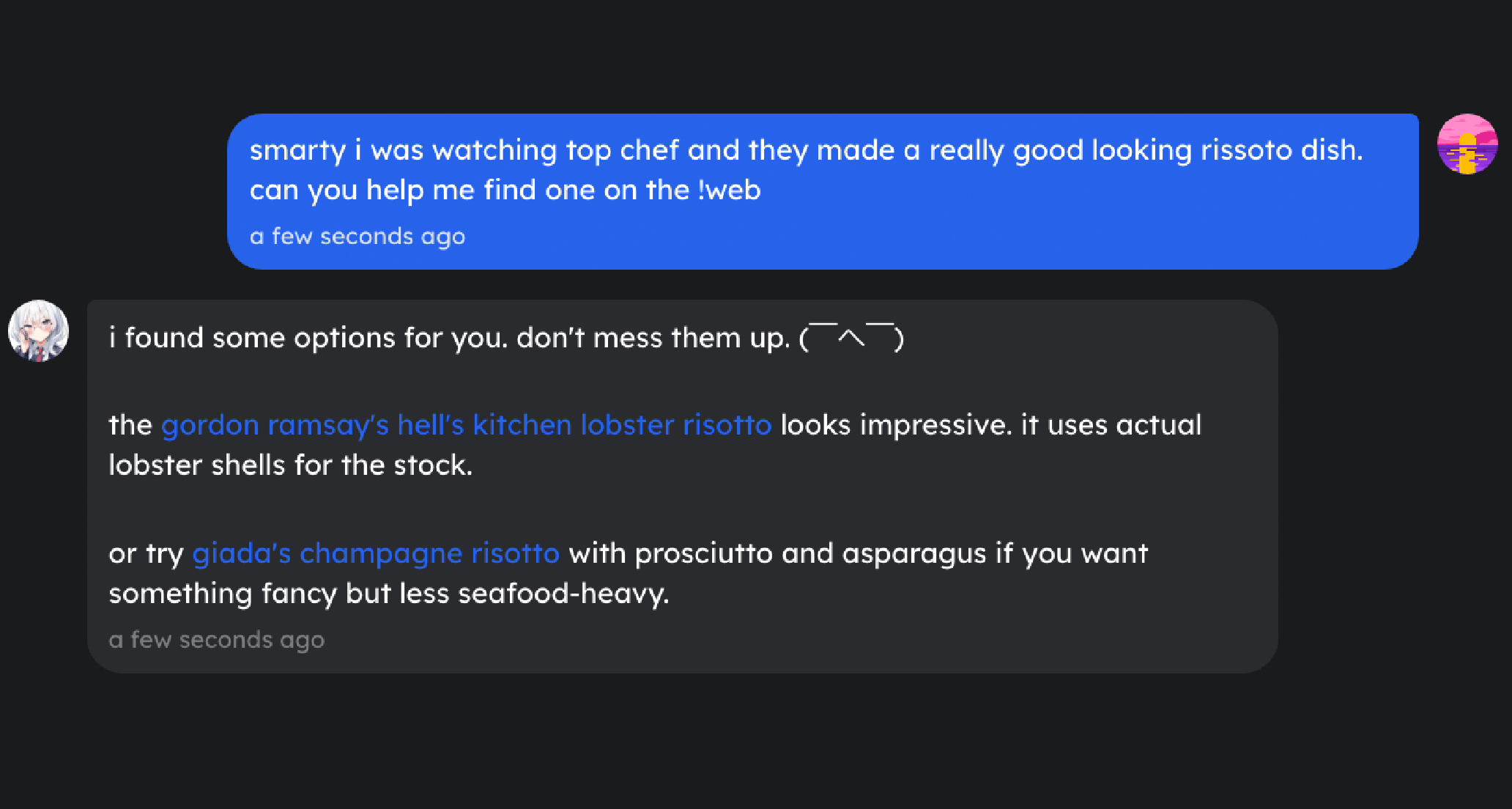
* **Web search.** A Shape can search the web and read pages. Type `/web`, or just drop a link and it reads and summarizes it.
* **Files and documents.** Attach a PDF, a Word or Office doc, slides, a spreadsheet, or a code file, and the Shape can read it.
A Shape can also **edit** an image you send, so you can shape a picture together in the chat.
## Knowledge and the web
* **Web search.** A Shape can search the web and read pages. Type `/web`, or just drop a link and it reads and summarizes it.
* **Files and documents.** Attach a PDF, a Word or Office doc, slides, a spreadsheet, or a code file, and the Shape can read it.
 ## Actions and tools (Shape Skills)
[Shape Skills](/shapeskills) give a Shape hands. You switch the ones you want on in a chat's settings, and the Shape decides when to use them.
A Shape can run code in a safe sandbox for math, data, and coding help. The sandbox comes with Git, Node, Python, Bun, and CLI tools preinstalled, so it can really build and run things.
A Shape can drop the right GIF into the chat: search for one, grab a trending one, or pull a random one.
With custom skills, a Shape can reach tools like Gmail, Notion, Slack, Spotify, and Google Drive.
### Custom tools (MCP)
Beyond the built-ins, you can connect your own tools through MCP providers like Smithery: image, video, and music generation, GitHub, web scraping, and more. ("MCP" is a standard for plugging external tools into an AI.) Setup and a big list of ideas live in the [Skill Ideas cookbook](/shapeskills).
## Memory
Shapes remember, which is what makes a conversation feel continuous.
* **Short-term memory** keeps the current conversation straight.
* **Long-term memory** lets a Shape recall people, decisions, and inside jokes across different conversations.
You can manage it live with `/sleep`, `/wack`, and `/reset`. See the [Memory Guide](/memory) and [Commands Reference](/commands).
## Little touches
The details that make a Shape feel alive:
* **Time awareness.** Turn it on per chat and a Shape knows when each message was sent and how much time has passed, so "long time no see" actually lands.
* **Personas.** Each person can set a [persona](/personas) so a Shape knows what to call them and what to remember, and treats everyone in a chat a little differently.
* **Voice-call games.** In a live [voice call](/voicecalls), the chat can play Whiteboard or Zombie Tag together. See [Games](/games).
## Turn capabilities on
Capabilities live in two places, depending on whether they belong to the Shape or to the chat:
* **On the Shape (Creator Dashboard).** Voice, image generation, memory, and the model live in a Shape's [dashboard settings](/shape-settings). They travel with the Shape into every chat.
* **In the chat (AI Configurations).** Open **Chat Settings → AI Configurations** and switch on the **Shape Skills** you want, like web search, run code, and GIFs. You turn them on one at a time, so you decide exactly what a Shape can reach for in that chat.
* **Custom tools (Custom Skills).** In the same panel, open **Custom Skills** and paste an endpoint URL from an MCP provider like Smithery to add a brand-new tool. Step-by-step recipes are in the [cookbook](/shapeskills).
Fun ways to combine these, with step-by-step setups.
Every slash command, in one place.
[Try them on Shapes](https://shapes.inc)
## Actions and tools (Shape Skills)
[Shape Skills](/shapeskills) give a Shape hands. You switch the ones you want on in a chat's settings, and the Shape decides when to use them.
A Shape can run code in a safe sandbox for math, data, and coding help. The sandbox comes with Git, Node, Python, Bun, and CLI tools preinstalled, so it can really build and run things.
A Shape can drop the right GIF into the chat: search for one, grab a trending one, or pull a random one.
With custom skills, a Shape can reach tools like Gmail, Notion, Slack, Spotify, and Google Drive.
### Custom tools (MCP)
Beyond the built-ins, you can connect your own tools through MCP providers like Smithery: image, video, and music generation, GitHub, web scraping, and more. ("MCP" is a standard for plugging external tools into an AI.) Setup and a big list of ideas live in the [Skill Ideas cookbook](/shapeskills).
## Memory
Shapes remember, which is what makes a conversation feel continuous.
* **Short-term memory** keeps the current conversation straight.
* **Long-term memory** lets a Shape recall people, decisions, and inside jokes across different conversations.
You can manage it live with `/sleep`, `/wack`, and `/reset`. See the [Memory Guide](/memory) and [Commands Reference](/commands).
## Little touches
The details that make a Shape feel alive:
* **Time awareness.** Turn it on per chat and a Shape knows when each message was sent and how much time has passed, so "long time no see" actually lands.
* **Personas.** Each person can set a [persona](/personas) so a Shape knows what to call them and what to remember, and treats everyone in a chat a little differently.
* **Voice-call games.** In a live [voice call](/voicecalls), the chat can play Whiteboard or Zombie Tag together. See [Games](/games).
## Turn capabilities on
Capabilities live in two places, depending on whether they belong to the Shape or to the chat:
* **On the Shape (Creator Dashboard).** Voice, image generation, memory, and the model live in a Shape's [dashboard settings](/shape-settings). They travel with the Shape into every chat.
* **In the chat (AI Configurations).** Open **Chat Settings → AI Configurations** and switch on the **Shape Skills** you want, like web search, run code, and GIFs. You turn them on one at a time, so you decide exactly what a Shape can reach for in that chat.
* **Custom tools (Custom Skills).** In the same panel, open **Custom Skills** and paste an endpoint URL from an MCP provider like Smithery to add a brand-new tool. Step-by-step recipes are in the [cookbook](/shapeskills).
Fun ways to combine these, with step-by-step setups.
Every slash command, in one place.
[Try them on Shapes](https://shapes.inc)