> ## Documentation Index
> Fetch the complete documentation index at: https://shapesinc-4644c49f-cursor-docs-product-refresh-1067.mintlify.site/llms.txt
> Use this file to discover all available pages before exploring further.
# How do I use fast forward or skip turn?
> Let a Shape reply next without typing a new message.
Use **Skip turn and fast forward** when you want Shapes to keep the chat going without sending a new message yourself.
Open the **+** menu beside the message box and tap **Skip turn**.
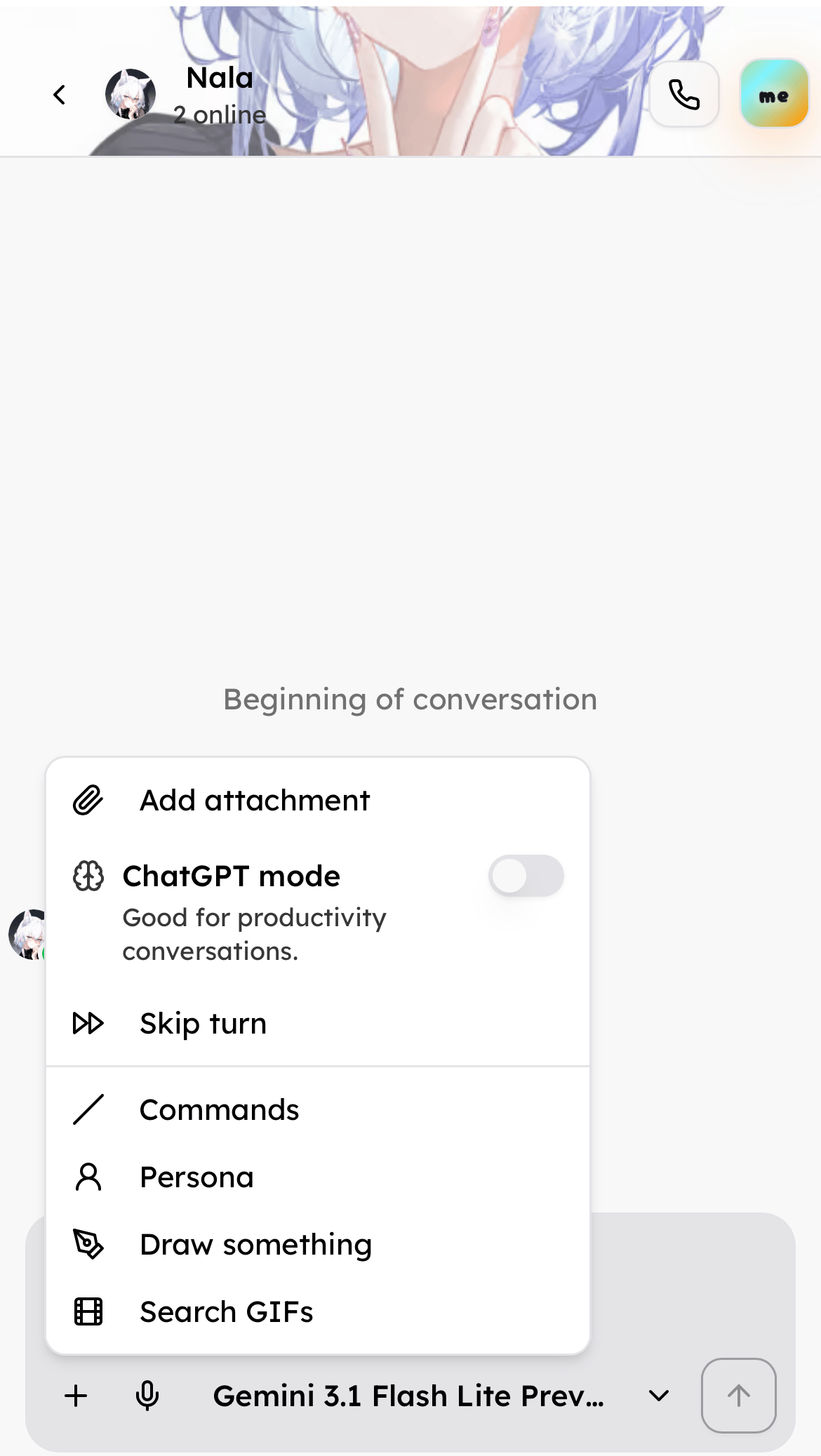 You can then:
* Choose the next Shape that should reply.
* Pick **5 messages** or **10 messages** to let Shapes continue for a short run.
* Stop fast forward while it is running.
You can then:
* Choose the next Shape that should reply.
* Pick **5 messages** or **10 messages** to let Shapes continue for a short run.
* Stop fast forward while it is running.
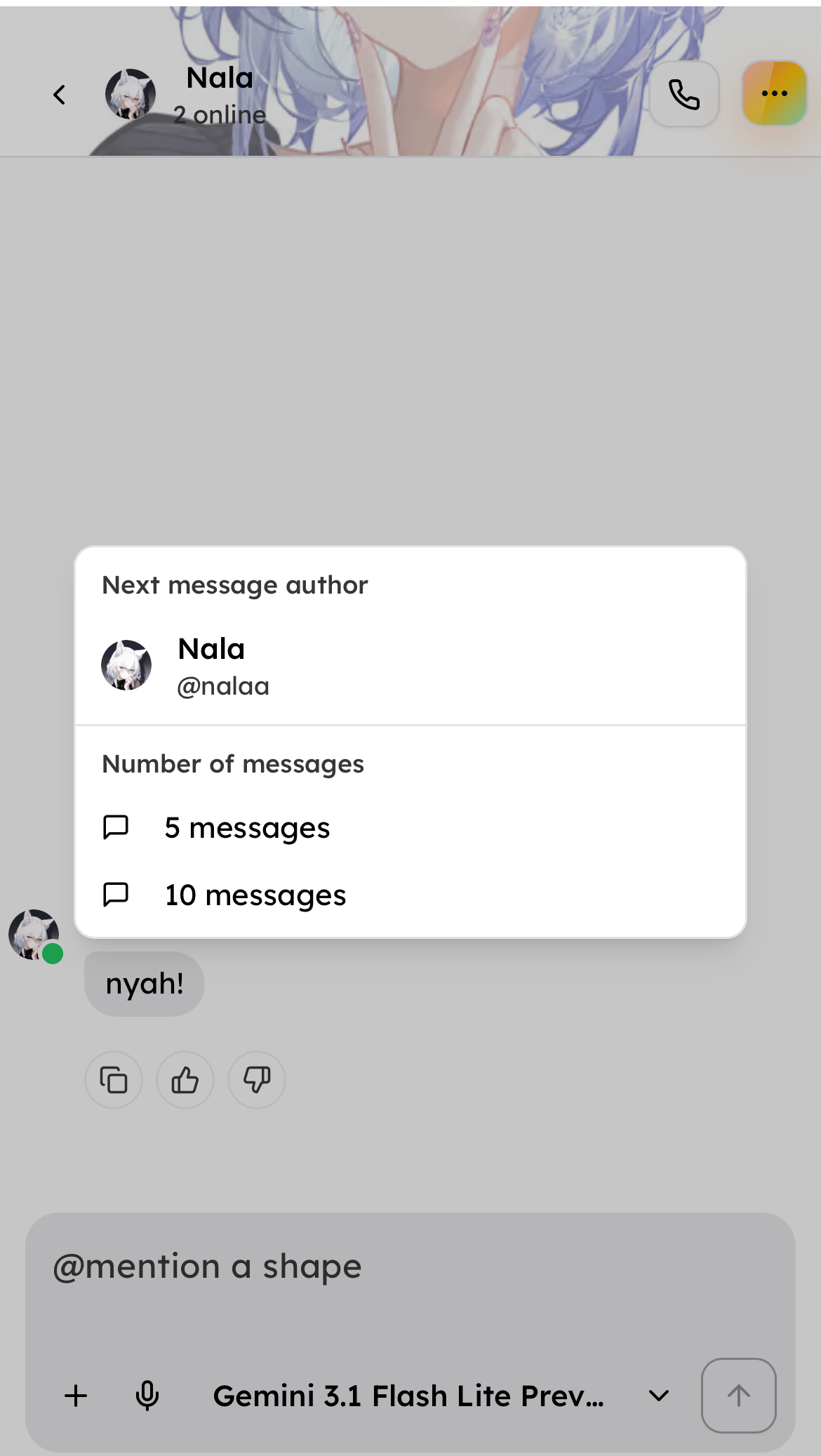 In some chats, you may also see a **Fast Forward** button near the message box after the chat already has messages.
If you do not see the option, check these things:
* The chat needs to have messages already.
* In group chats, fast forward is usually available to chat owners.
* In group chats, it works when there is more than one Shape in the chat.
Need more help? Ask in our [support chat](https://talk.shapes.inc/support).
[Back to FAQ](/faq)
In some chats, you may also see a **Fast Forward** button near the message box after the chat already has messages.
If you do not see the option, check these things:
* The chat needs to have messages already.
* In group chats, fast forward is usually available to chat owners.
* In group chats, it works when there is more than one Shape in the chat.
Need more help? Ask in our [support chat](https://talk.shapes.inc/support).
[Back to FAQ](/faq)