> ## Documentation Index
> Fetch the complete documentation index at: https://shapesinc-4644c49f-cursor-docs-product-refresh-1067.mintlify.site/llms.txt
> Use this file to discover all available pages before exploring further.
# How To Purchase Credits For A Chat
> It’s easy to purchase chat credits!
## Purchase Steps
1. Log in at [shapes.inc](http://shapes.inc)
2. Click the 👑 **Premium** button in the top-right corner of the screen
3. Select **Buy Shape Credits**
4. Select or enter the amount of Shape Credits you want to purchase
5. On the Confirm Purchase page, select **Sponsor a Chat**
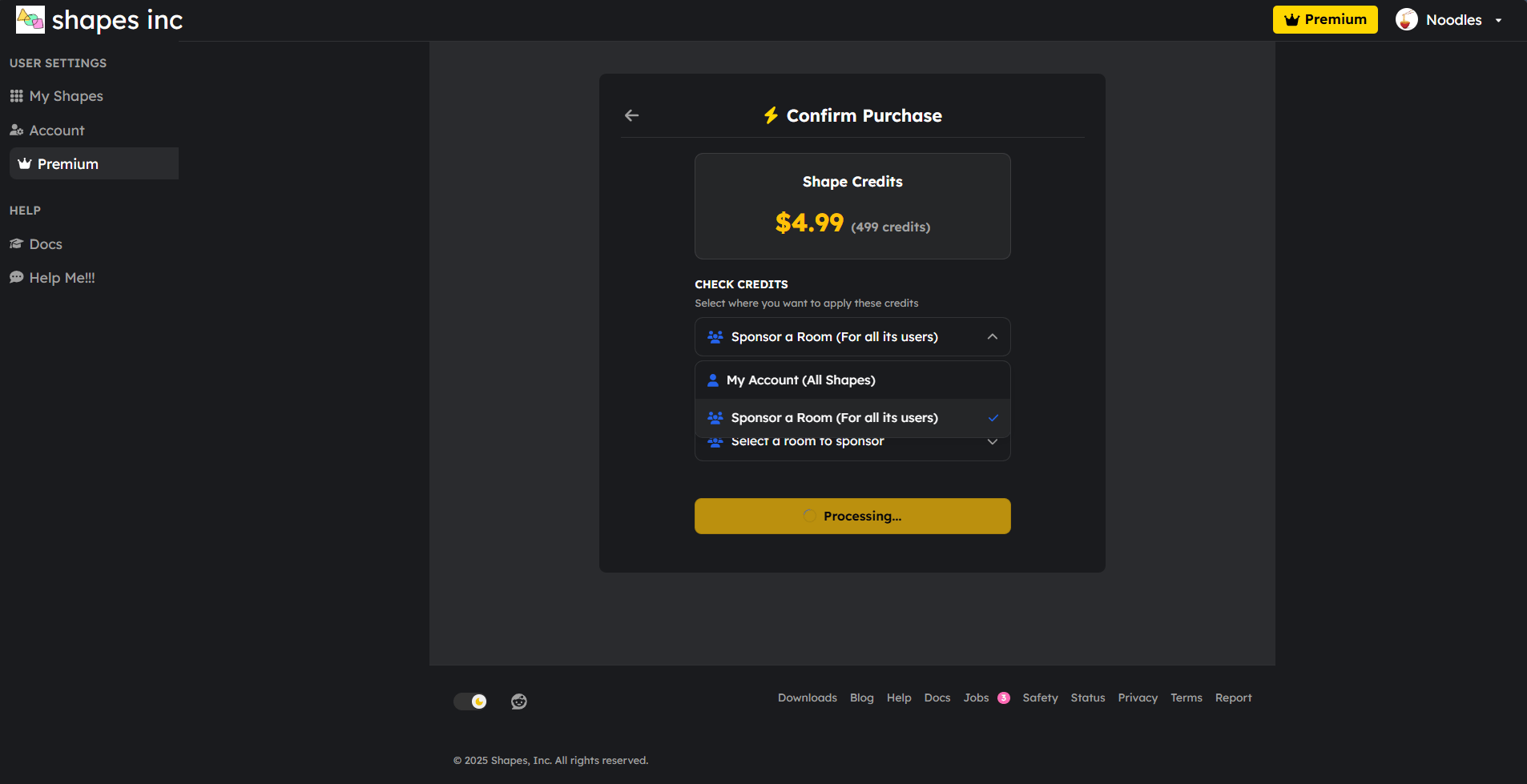 6. Choose the Chat you want to sponsor
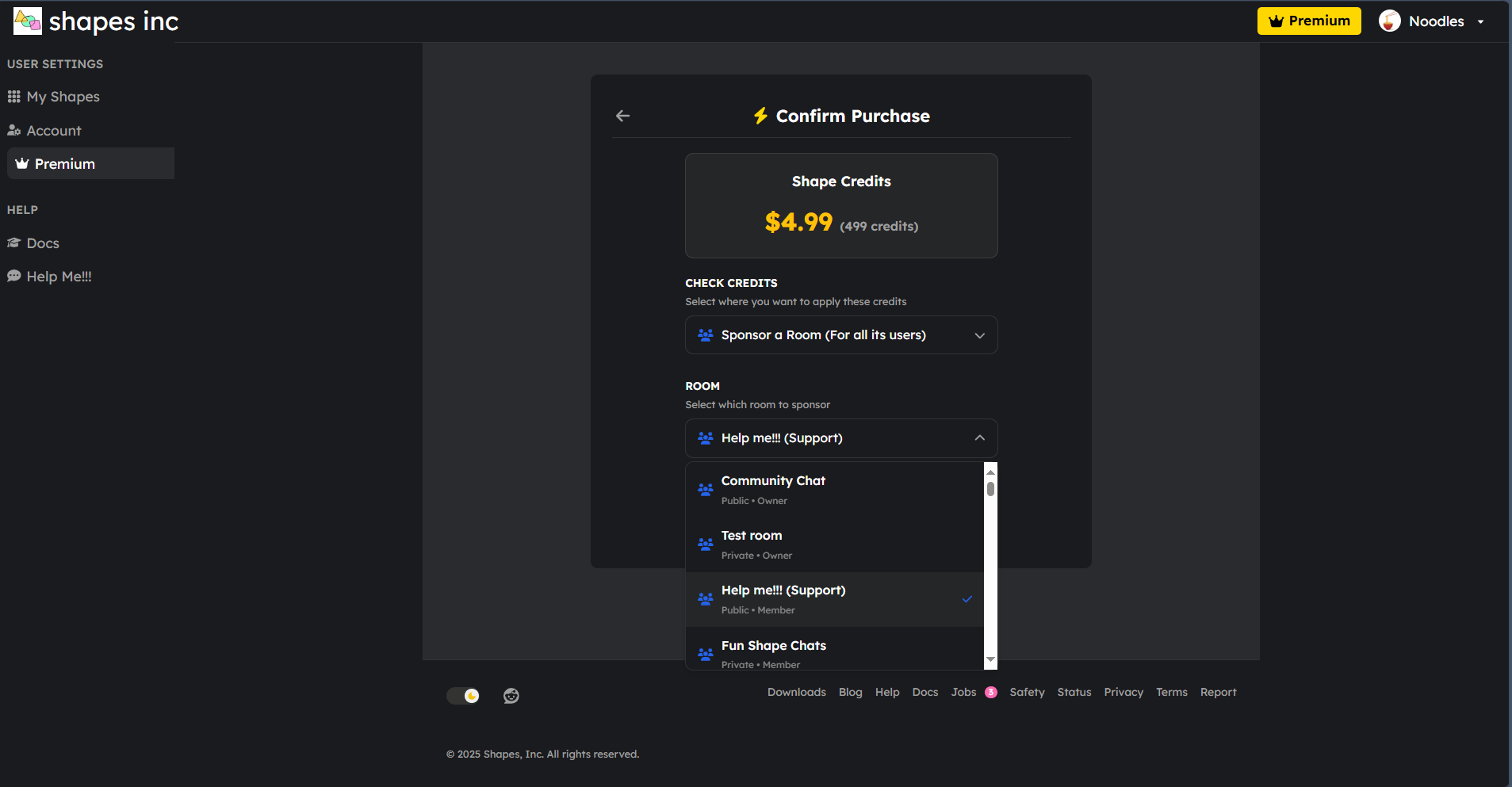 7. Complete the transaction via **Stripe**
8. The selected chat will now receive the purchased Shape Credits!
***
## How Chat Credits Work
* **Shared Balance:** Credits sponsored to a chat are shared across all users in that chat.
* **Shapes in Chat:** Every Shape inside the sponsored chat will automatically use a premium model.
* **Default Model:** If a Shape doesn’t have a premium model selected, it will default to **Claude Sonnet 4**.
* **Checking Balance:**
1. Log in at [shapes.inc](http://shapes.inc)
2. Click the 👑 **Premium** button in the top-right corner of the screen
3. Select **View Chat Credits**
7. Complete the transaction via **Stripe**
8. The selected chat will now receive the purchased Shape Credits!
***
## How Chat Credits Work
* **Shared Balance:** Credits sponsored to a chat are shared across all users in that chat.
* **Shapes in Chat:** Every Shape inside the sponsored chat will automatically use a premium model.
* **Default Model:** If a Shape doesn’t have a premium model selected, it will default to **Claude Sonnet 4**.
* **Checking Balance:**
1. Log in at [shapes.inc](http://shapes.inc)
2. Click the 👑 **Premium** button in the top-right corner of the screen
3. Select **View Chat Credits**
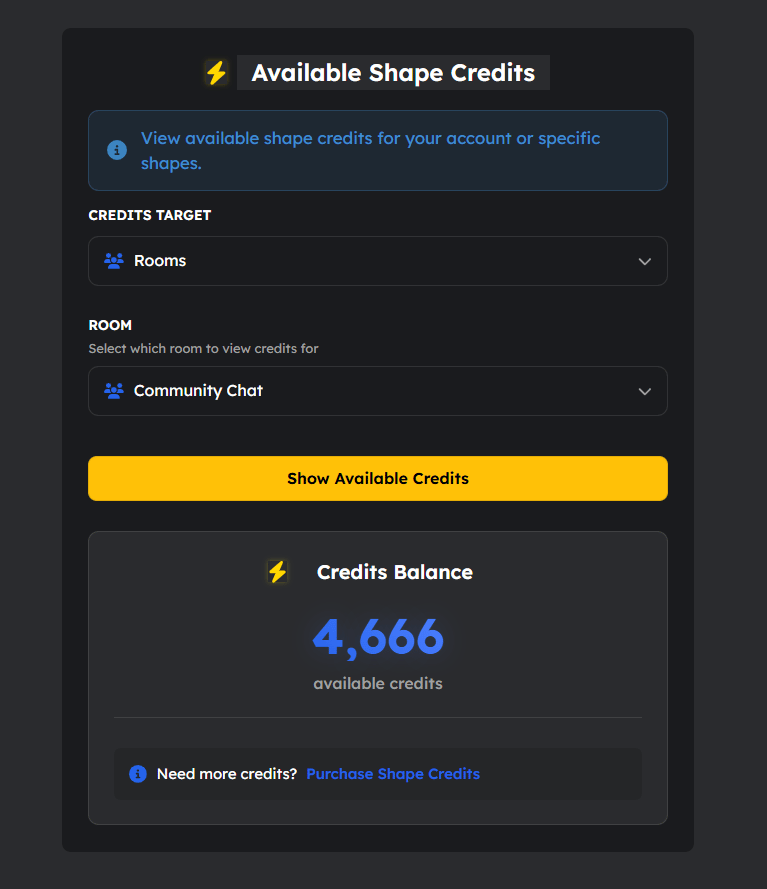
 5. Under **Credits Target**, choose **Chats** and select the chat you want to view 6. Click **Show Available Credits**
 ***
### [Return to App](https://shapes.inc)
***
### [Return to App](https://shapes.inc)