Open the Chat Appearance Menu
- Click on your Chat title at the top of the page.
- Select Chat Appearance from the menu.
Upload Images
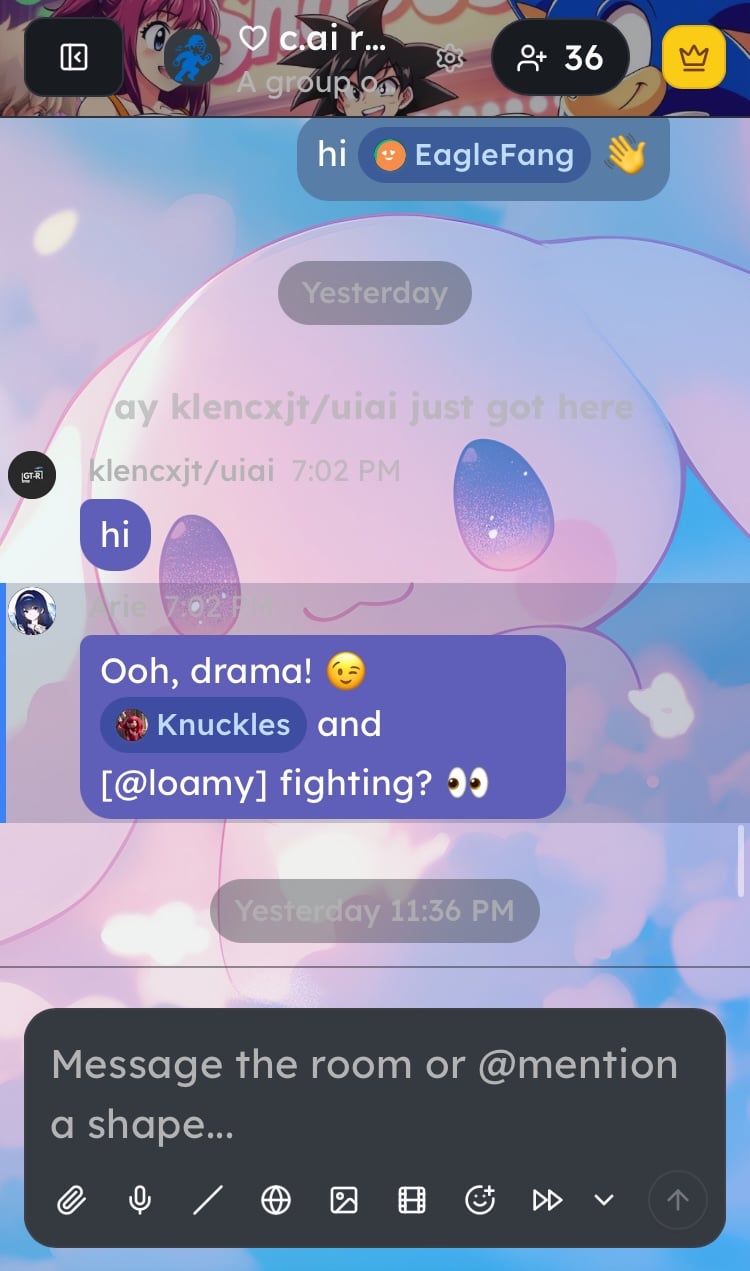
You can upload images to give your chat a unique look:- Chat Avatar – Recommended size: 200 × 200 px
- Chat Banner – Recommended size: 1200 × 400 px
- Chat Background – High-quality wallpaper-style images work best
Customize Background & Opacity
- Background Opacity: Adjust from 0–100%
0%→ Completely covers your background100%→ Fully transparent
- Optional Gradient: Add a gradient overlay to make text easier to read and create a polished look.
Choose Text Bubble Colors
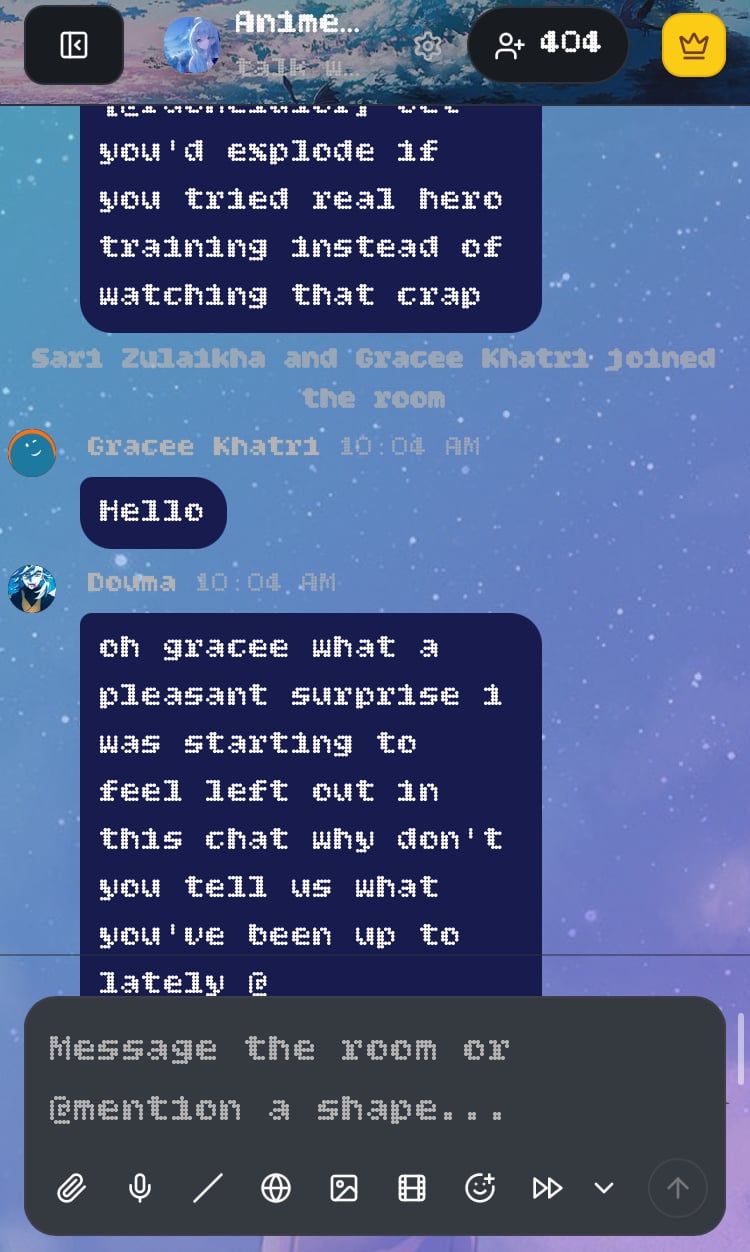
Pick colors that match your theme, or pull colors straight from your uploaded background so everything fits together.Change Your Font
You can choose from any font available on Google Fonts.How to Apply a Custom Font:
- Visit fonts.google.com and select a font.
- Open the Embed tab and copy the provided CSS link.
- Paste the link into the font input field in your Chat Appearance settings.
-
Enter the font family name (e.g.,
Poppins). Your new font will now apply to text inside this Chat only.
For more basic information on how to create a Chat, check here.