

Create Shape
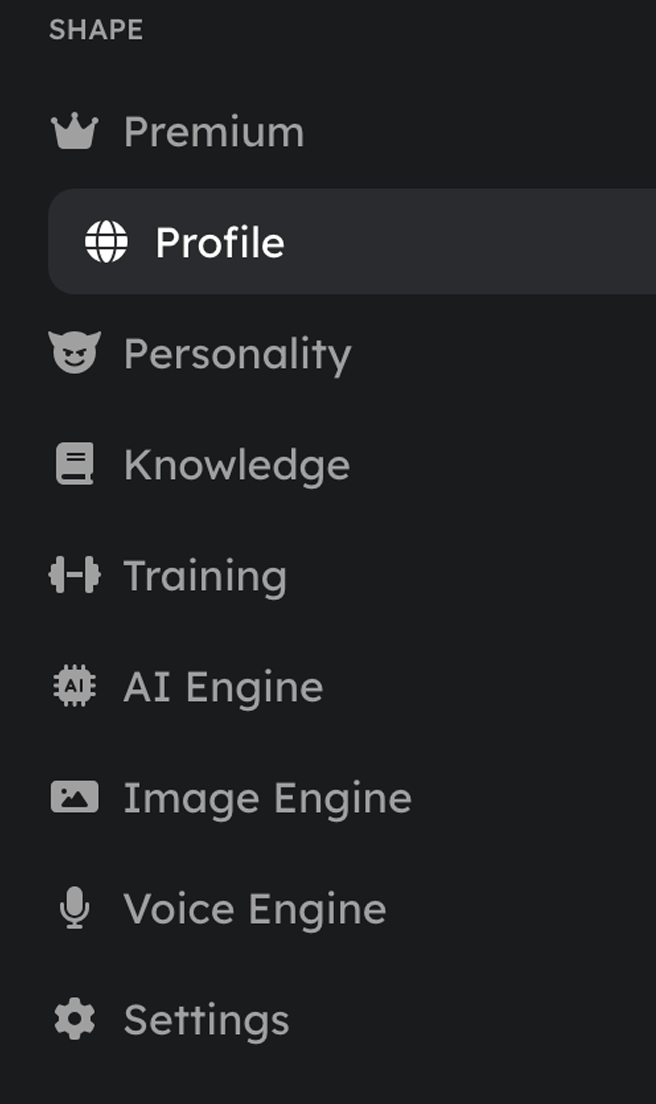
The minimum to get a Shape live. You can change all of it later.Personality
Who the Shape is. Keywords beat paragraphs here. See When Less Is More.Knowledge
A searchable bank of facts the Shape pulls from when relevant. Three types:- General: lore, backstory, facts, personality details.
- Commands: custom responses for triggers like
!rulesor!help. - Relationships: how the Shape should treat specific people.
- Knowledge context size: how many entries can be pulled into a reply (default 30).
- Knowledge relevance: how closely an entry must match to be used. Lower pulls in more but looser; higher pulls in fewer but tighter.
Training
Input/output examples that guide how the Shape replies. It learns the pattern instead of repeating them word for word. The more representative examples you add, the more consistent its voice.- Training context size: how many examples can inform a reply (default 30).
- Training relevance: how closely an example must match the current message to be used.
AI Engine
The model the Shape runs on, plus generation controls.Advanced engine parameters
These shape the raw output of the model. The defaults are good, so don’t change them unless you know what they do.Sampling parameters
Sampling parameters
- Temperature: how random or creative the replies are (default
0.95). Higher is wilder, lower is more focused. - Top P: how wide a pool of word choices the model draws from.
- Top K: limits choices to the most likely options.
- Min P and Top A: extra filters on which word choices are allowed.
- Repetition penalty: discourages repeating the same text.
- Frequency and presence penalty: push the model toward fresh wording and new topics.
Short-term memory (STM)
The window of recent messages the Shape reasons over.- STM window: the number of recent messages kept in context (default 15). Set it to 0 to turn STM off.
Long-term memory (LTM)
Durable memories recalled across conversations. On by default.
See the Memory Guide for the full picture and a sample LTM instruction preset.
Image Engine
Controls the/imagine command and the images your Shape draws.
Voice Engine
Gives your Shape audio replies. Full walkthrough in Give Your Shape a Voice.Advanced voice controls
Advanced voice controls
- Speed: how fast it speaks.
- Variation: how much the delivery changes from message to message.
- Exploration: how freely the voice model interprets the text.
- Voice instructions: guidance for how the Shape should sound when speaking, and how voice messages show up in history.
Profile & branding
How your Shape appears to the world and in discovery.Settings (general)
The controls that govern access and safety.How to think about all this
The craft guide that turns these knobs into a Shape people love.
Copy-ready example Shapes
Full configs you can adapt for your own.