This page is the inspiration. For the full, verified list of what a Shape can do and how to switch each one on, see the Capabilities catalog.
It’s genuinely fun
The best part is watching a Shape reach for a tool on its own: pulling up a song that fits the mood, saving a note mid-roleplay, or grabbing the morning news because that’s just what it does. With the right skills, a Shape can:- Build and keep a Lorebook in Notion that it uses throughout a roleplay.
- Sort your inbox and draft replies in Gmail.
- Add a song to a Spotify playlist that matches the vibe of the chat.
- Search the web and turn what it finds into a Google Slides outline.
- Whip up a quick webpage, a meme, or a soundtrack for your story.
Add a custom skill in two minutes
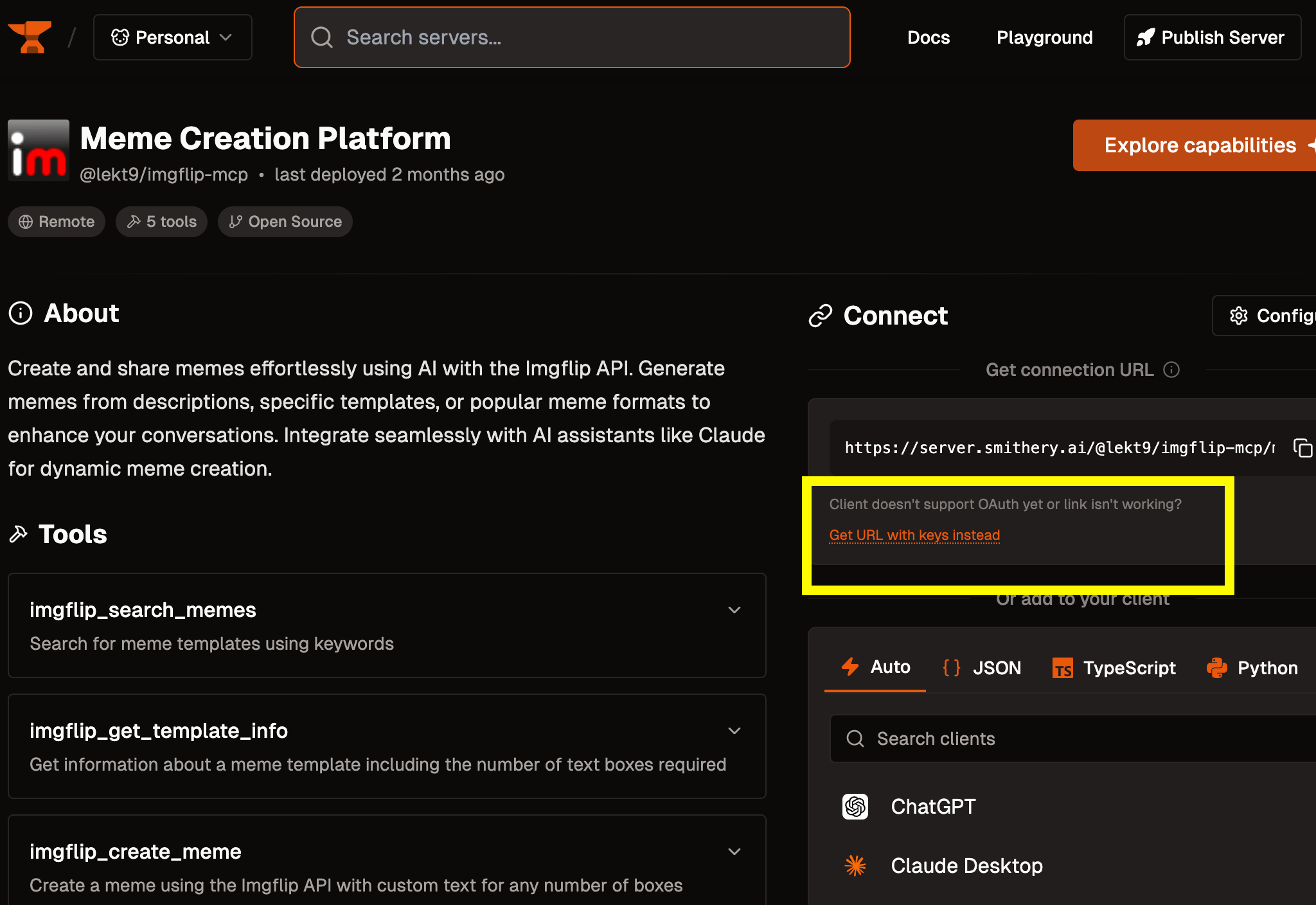
Beyond the built-ins, you can give a Shape brand-new tools through MCP providers like Smithery. (“MCP” is just a standard way to plug an outside tool into an AI.) Here’s the flow, using a meme maker as the example:1
Open AI Configurations
In a chat you own, open Chat Settings → AI Configurations, scroll to Custom Skills, and turn it on.
2
Grab an endpoint URL
On smithery.ai, find a tool (search “meme”), connect any account it needs, and choose “Get URL with keys” to copy your endpoint URL.
3
Paste it into Shapes
Back in Custom Skills, paste the URL and give the skill a clear name, like Imgflip Memes.
4
Just ask
Your Shape now has the tool. Talk to it normally, like “make me a meme about Mondays,” and it’ll use the skill in its own voice.
Recipes to steal
Lorebook keeper (Notion)
Lorebook keeper (Notion)
Connect Notion and have your Shape keep a living Lorebook for your roleplay: characters, places, plot threads. It updates as the story grows. Ask it to “add Mara to the lore” or “remind me what happened at the docks.”
Group DJ (Spotify)
Group DJ (Spotify)
Connect Spotify and let your Shape build a playlist around the mood of the chat, or drop in the perfect track when someone sets a scene.
Inbox helper (Gmail)
Inbox helper (Gmail)
Have your Shape summarize your inbox, point out what needs a reply, and draft responses in your voice, all from a chat.
Research to slides
Research to slides
Ask your Shape to search the web on a topic, sum up what it finds, and turn it into a Google Slides outline you can build on.
Concept art on demand
Concept art on demand
With image generation, ask for avatars, scene art, or mood boards mid-conversation. Set an image preset so it matches your Shape’s look.
Build a webpage
Build a webpage
With the code skill, a Shape can write and run code in a sandbox to prototype a script or a small web page on the spot.
Which engines can use skills?
Tool use depends on the model. Look for the Tools badge on the engines page, and use Which Model Should I Use? to pick one that’s good at it. If a skill isn’t firing, switch to a Tools-capable engine first.Tips for great results
- Name skills clearly so you remember what each one does.
- Try different engines. Not every model uses tools the same way.
- Mix skills with personality. A roleplay Shape that quietly keeps a Notion Lorebook feels alive in a way a plain bot never will.
- Skills are experimental. Some third-party tools can be flaky. If one misbehaves, check that it’s enabled and that your engine supports tools.
The full capability catalog
Everything a Shape can do, and how to turn it on.
Design a Shape that uses them well
Skills land best on a character with a clear point of view.